
SWIMGA Monthly Meetings Are Going Hybrid in January 2026
We are thrilled to announce that our upcoming monthly membership meetings will now be hybrid, meaning you can join us in person or via Zoom from the comfort of your home! This change will make it easier for everyone to stay connected, no matter where you are. To ensure a smooth experience for all, please review the following guidelines and tips.
1. Before the Meeting
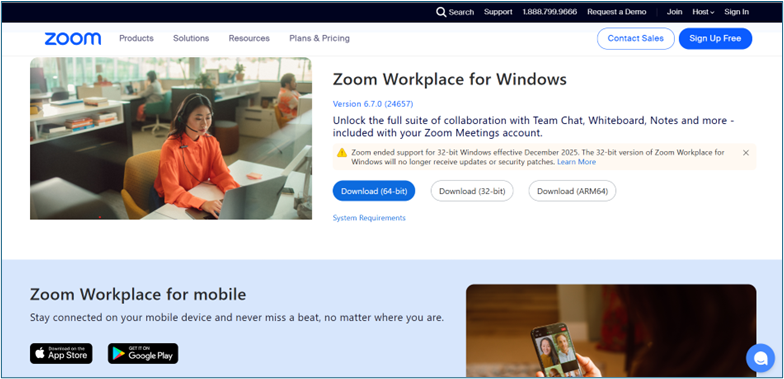
• Install Zoom: Download the Zoom app onto your computer, tablet, or smartphone. Visit zoom.us/download or your device’s app store.
• You can use your smartphone to download and attend the Zoom Meeting if you are not comfortable with using your computer.
• Test Your Device: Make sure your camera and microphone work. Practice joining a Zoom meeting before the actual event.
• Update Zoom: Check for updates to avoid technical issues. Zoom has just released an updated version of their app as of Dec 15, 2025. If you have an older version, please update by re-downloading the app.
• Find a Quiet Spot: Choose a location with minimal background noise and good lighting.
• Have the Meeting Link Ready: The Zoom link will be emailed by Charlie Anslinger to you as a calendar invite. Keep it handy.
2. During the Meeting
• Join Early: Log in 10–15 minutes before the meeting starts to troubleshoot any issues.
• Mute When Not Speaking: This helps reduce background noise for everyone.
• Use ‘Raise Hand’ Feature: If you want to speak, click ‘Raise Hand’ in Zoom so the host can call on you.
• Stay on Camera (If Possible): Seeing faces helps everyone feel connected.
• Avoid Side Conversations: Whether in person or online, keep the focus on the meeting.
3. Meeting Manners
• When speaking first introduce yourself so the meeting minutes can reflect your question, comment, or statement.
• Be Respectful: Let others finish speaking before you respond.
• Keep Comments Brief: This ensures everyone has time to participate.
• Stay Engaged: Avoid multitasking during the meeting.
• Dress Appropriately: Even online, treat it like an in-person meeting.
• Technical Patience: If someone has trouble, be patient, they’re learning too!
4. First-Time Zoom Users: Step-by-Step Guide
1. Step 1: Download Zoom – Go to zoom.us/download and click Download for your device (Windows, Mac, iOS, or Android).
2. Step 2: Install and Open Zoom – Follow the installation instructions and open the Zoom app.
3. Step 3: Join the Meeting – Click Join a Meeting and enter the Meeting ID and Passcode from the email.
4. Step 4: Enable Audio and Video – When prompted, click Join with Computer Audio and turn on your camera if you’d like to be seen.
5. Step 5: Practice Before the Meeting – Try joining a test meeting at zoom.us/test
We’re excited to see you—whether in person or online! This new hybrid format will help us stay connected and make participation easier for everyone. If you have questions or need help with Zoom, please reach out to Charlie Anslinger (charlieanslinger1953@gmail.com) or 812-454-5618)